Export & Download
FlowFrame provides multiple export options for queries, frame data, and visualizations. You can export to various formats depending on your downstream needs — from SQL files for database tools to high-resolution images for presentations.
Query Export
Export the SQL query from any frame in four different formats.
How to Export a Query
Hover over a frame to reveal the hovering panel
Click the View Query icon (
<>)Click the download icon (↓)
Select your preferred format
Available Query Export Formats
.sql— SQL file for use in database tools and query editors.json— JSON file for programmatic and API use.csv— CSV file for spreadsheet applications.md— Markdown file for documentation and wikis
The file downloads automatically to your browser's download folder.
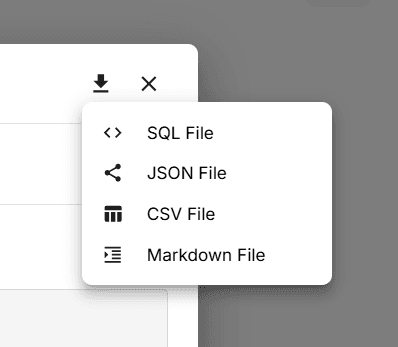
Export queries as .sql, .json, .csv, or .md from the Query Viewer
Frame Export
Export frame outputs as high-resolution PNG images or as raw data in CSV format.
Method 1: Hovering Panel
Hover over a frame → click the (…) icon in the hovering panel → select "Download as Image" or "Download as CSV".
Method 2: Frame Settings
Double-click the frame to open the frame settings panel → navigate to the Format tab → Actions section → click the Download dropdown and select your format.
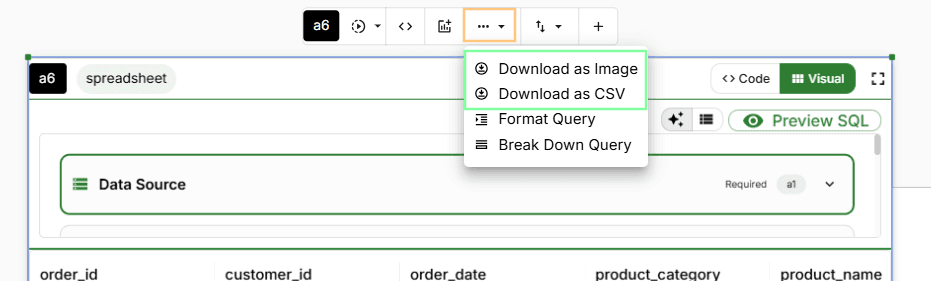
Download frame output as a high-resolution PNG image or as raw CSV data
Visualization Export
Export chart visualizations as images or export the underlying chart data as a CSV.
How to Export a Visualization
Hover over a visualization frame to reveal its hovering panel. Click the Download icon (↓) and choose from:
"Download as Image" — exports a high-resolution PNG of the chart
"Download as CSV" — exports the underlying data that the chart is built from
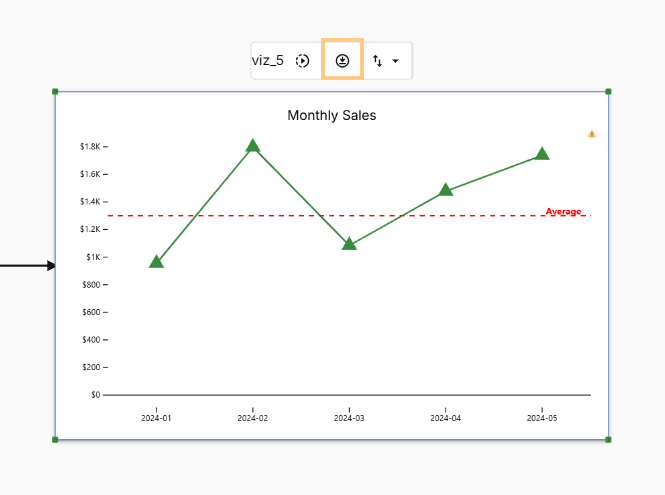
Export charts as high-resolution PNG images or download the underlying data as CSV