Collaboration
FlowFrame is built for team collaboration. Multiple users can work on the same canvas simultaneously with live cursors, real-time updates, and built-in conflict prevention — similar to how teams collaborate in Figma.
Setting Up Team Collaboration
Create a team workspace
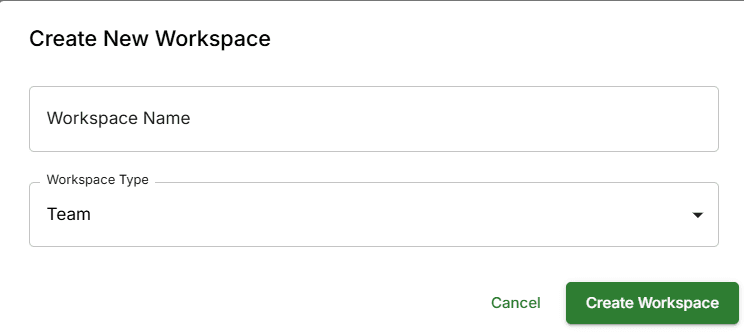
Create a team workspace from the top navigation bar
Invite team members
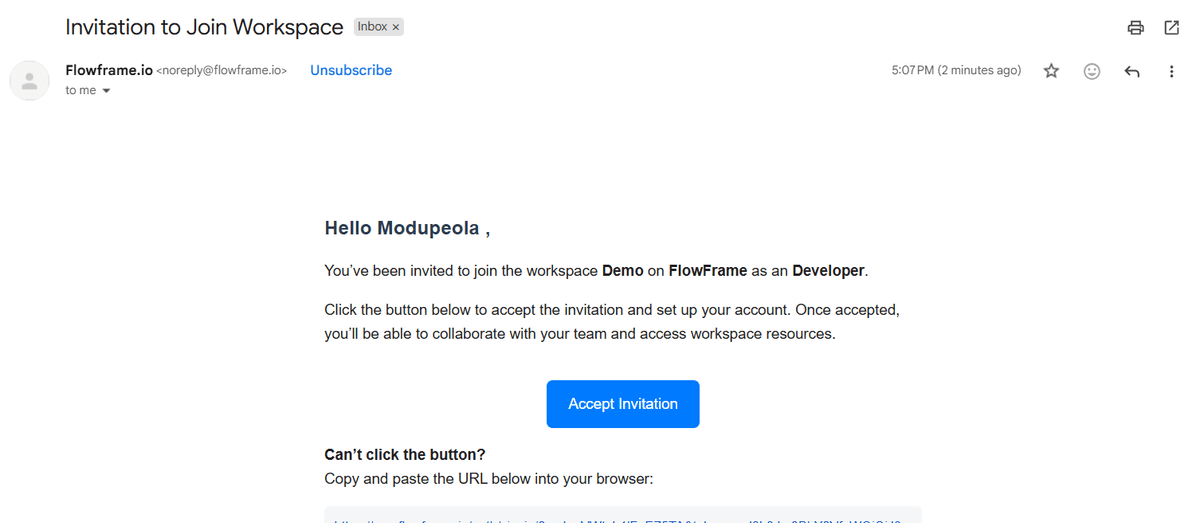
Enter email addresses and assign roles when inviting team members
Manage workspace settings
Rename: Go to the General section → enter a new name → click Update Name
Delete: Go to the Danger Zone → type the workspace name to confirm → click Delete Workspace
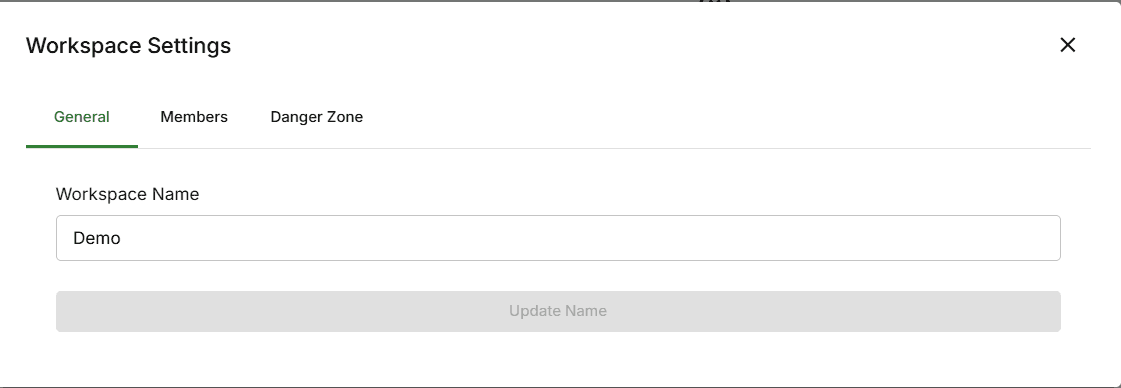
Manage workspace name and members from the Settings panel
Real-Time Editing
FlowFrame uses conflict-free replicated data types (CRDTs) to enable seamless real-time collaboration. All changes are synchronized instantly across all connected users.
Collaboration Features
Live cursors: See where each collaborator is on the canvas in real-time
Instant updates: All changes appear immediately for every connected user
Concurrent editing: Multiple users can edit different frames simultaneously without conflicts
Conflict prevention: Frame locking prevents two users from editing the same query at the same time
User indicators: Colored labels show which collaborator is currently editing each frame

Multiple users can edit simultaneously — live cursors show each collaborator's position
Roles & Permissions
FlowFrame has five permission levels. Assign roles carefully to ensure team members have appropriate access to workspace resources.
| Role | Member Management | Settings Access | Workspace Capabilities |
|---|---|---|---|
| Owner | Full control | Full access | Complete access — manage connections, create/edit/share/delete projects, manage user access, delete workspace |
| Admin | Nearly owner-level | Full access | Manage connections, create/edit/share/delete projects, manage user access. Cannot delete workspace |
| Developer | No access | No access | Manage connections, create/edit/share/delete projects. Cannot manage user access |
| Explorer | No access | No access | View and run projects. Cannot create, edit, or delete |
| Viewer | No access | No access | View only. Cannot run queries or create/edit/delete anything |
Role Recommendations
Owner: The project creator and primary administrator. Only one Owner per workspace.
Admin: Team leads and managers who need full control over the workspace
Developer: Data analysts and engineers who build and maintain pipelines
Explorer: Business users who run existing reports and dashboards
Viewer: Stakeholders who only need read-only access to dashboards
Sharing Projects
You can share any project publicly via a shareable link. No login is required to view a shared project.
Open the Share dialog
Review and continue
Copy and share the link
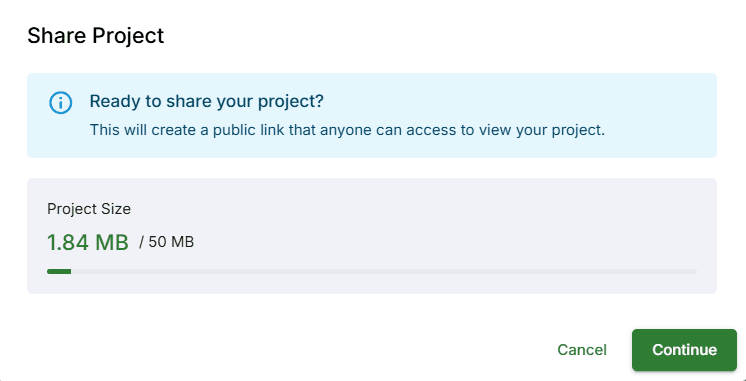
A unique shareable link is generated — no login required to view
Updating a Shared Project
After making changes to a shared project, the Share button becomes Publish. Click Update to publish your changes. The existing link automatically reflects the updated content.
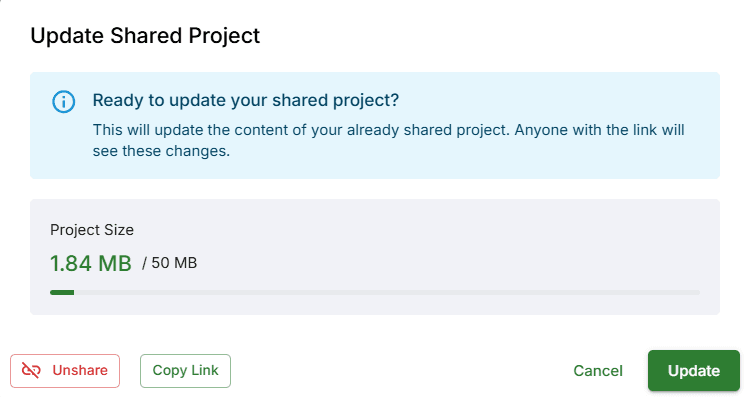
Click 'Update' to publish changes — the existing link reflects updated content automatically
Unsharing a Project
Click Publish → Unshare → confirm the action. The previously shared link becomes inaccessible immediately.
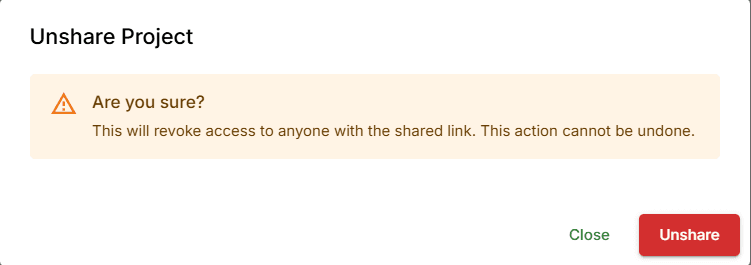
Unsharing a project immediately invalidates the previously shared link
Public vs Internal Access
Public (shared link): Displays pre-calculated results for instant loading. Content updates only when you manually click Publish.
Internal (Explorer/Viewer roles): Shows live results that reflect all workspace changes in real-time.