SQL Editor
FlowFrame includes a full-featured SQL editor in every query frame. The editor supports standard code editing features alongside a no-code visual query builder for users who prefer a Graphical approach.
Editor Features
The SQL editor provides a complete code editing experience within each frame:
Syntax highlighting: Color-coded keywords, identifiers, and literals
Auto-completion: Suggests table names, column names, and SQL keywords as you type
Line numbers: Displayed in the gutter for easy navigation and debugging
Query history: Access previous executions to revert or reference past queries
Visual Query Builder (No-Code)
If you are not comfortable writing SQL, FlowFrame includes a Visual Query Builder that auto-generates equivalent SQL from a graphical interface. Switch to "Visual" mode in the query editor toggle to access it.
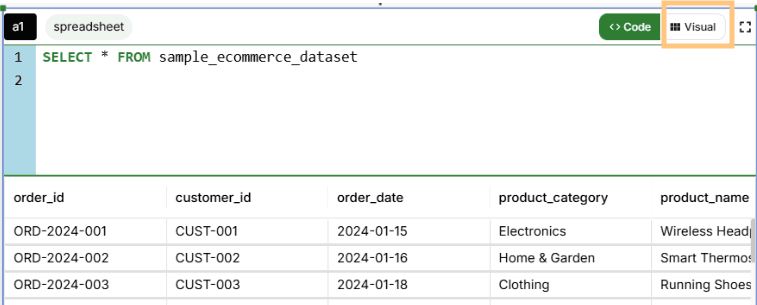
The Visual Query Builder — build SQL queries without writing any code
View Modes
Step-by-Step: Walk through each query component one at a time. Click Add Query Component at the bottom of the page to add more SQL components as needed.
Advanced: See all components at once on a single screen
Expanded: Full-screen mode for complex queries — available for both Step-by-Step and Advanced views
Query Builder Components
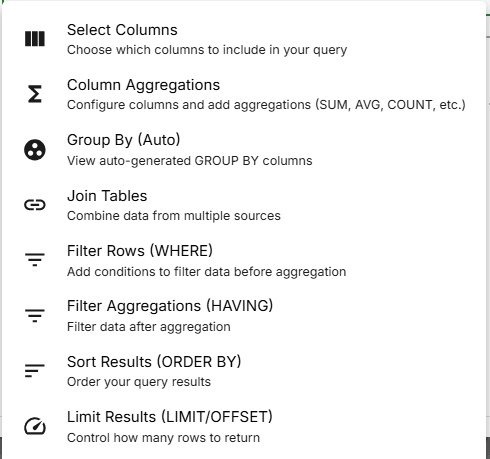
Query builder components — each step maps to a SQL clause
1. Select Data Source
Choose your data source from a dropdown menu. The available options are restricted to sources matching the connection type of the frame.
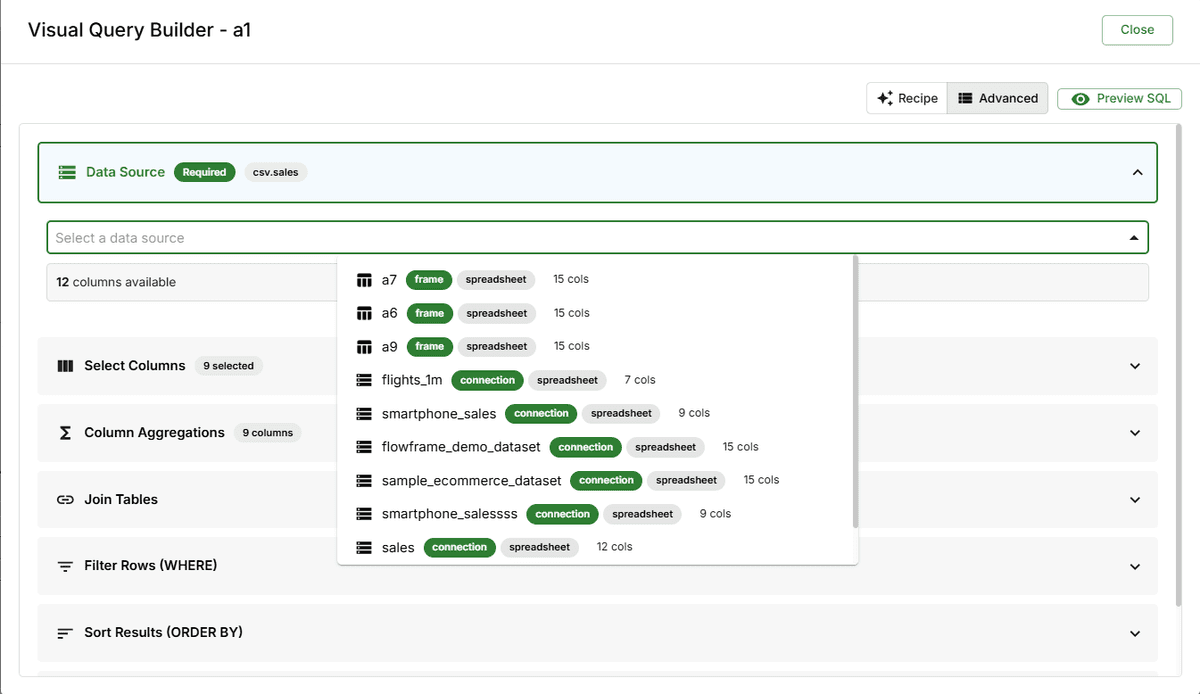
Select the data source for your query
2. Select Columns
Tick checkboxes next to the columns you want to include. A select all checkbox is also available to include every column at once. Column data types are displayed on the right side of the column list for reference.
3. Column Aggregations
Apply aggregation functions to numeric columns: SUM, AVG, COUNT, MIN, MAX, or COUNT DISTINCT. Specify column aliases. Non-aggregated columns are automatically added to the GROUP BY clause.
4. Filter Rows (WHERE)
Add filter conditions by specifying a column, an operator, and a value type. Each filter supports three value types:
Value: A specific literal — number, string, or boolean
Parameter: Reference a parameter node by name to make the filter dynamic
Column: Compare against another column of a similar data type (row-by-row comparison)
Click (+) to add more filters. Combine multiple conditions with AND or OR logic.
-- Example WHERE filter
WHERE region = 'North America'
  AND year >= 2023
Filter rows using column conditions, parameter references, or column comparisons
5. Join Tables
Add joins between tables using INNER JOIN, LEFT JOIN, RIGHT JOIN, or FULL JOIN. Select the join columns from both tables. These joined columns appear in the Select Columns step.
6. Filter Aggregation (HAVING)
This component is available only when aggregations are in use. It behaves like the WHERE filter but applies after aggregation — equivalent to a SQL HAVING clause.
7. Sort Results (ORDER BY)
Choose one or more columns to sort by and specify ascending or descending direction. Use the priority arrows to control sort order when sorting by multiple columns.
8. Limit Results (LIMIT / OFFSET)
Enter the number of rows to return (LIMIT) and the number of rows to skip before returning results (OFFSET). Useful for pagination or sampling large datasets.
Query Management
Click the View Query icon (<>) on the hovering panel to open the Query Viewer. This panel gives you deep insight into your queries and their performance.
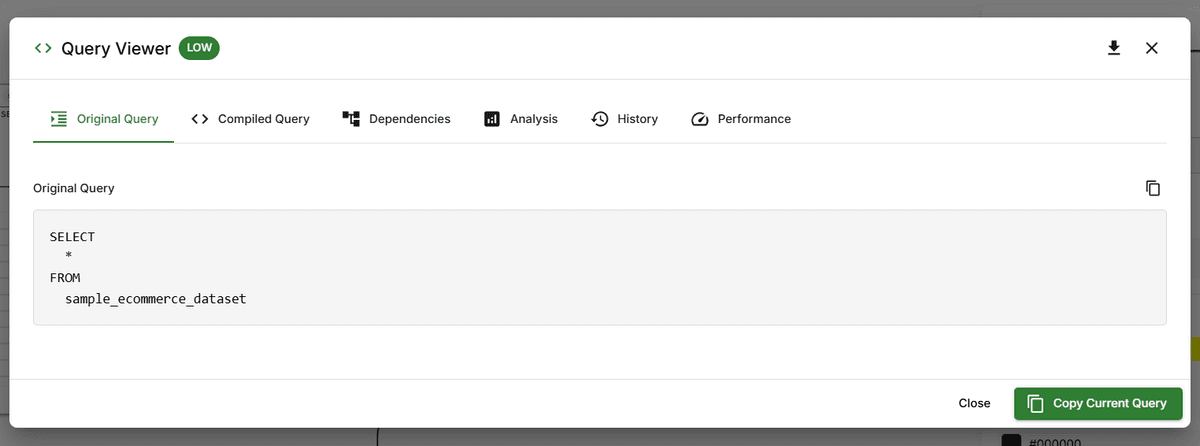
The Query Viewer shows original SQL, compiled query, dependencies, analysis, history, and performance
Query Viewer Tabs
Original Query: The current SQL as written in the editor
Compiled Query: The query after parameter substitution (with actual values replacing
{{variables}})Dependencies: Visual map of frame relationships
Analysis: Query structure metrics and complexity indicators
History: Past executions with timestamps and duration
Performance: Rows returned, data size, success rate, average execution time, and total execution count
Query Formatting
FlowFrame offers two ways to auto-format your SQL queries:
Method 1 — Hovering Panel: Click the Format Query icon (
…) → choose "Format Query" to indent and clean up your SQL, or "Break Down Query" to convert it into readable CTEs.Method 2 — Frame Settings: Double-click the frame → open the Format tab → Actions section → click "Format Query" or "Code Breakdown".
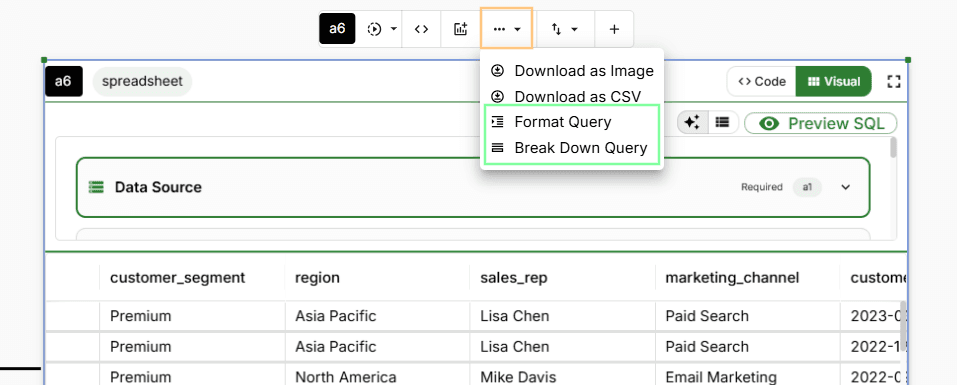
Use 'Format Query' to clean up SQL, or 'Break Down Query' to convert to CTEs