Chart Customization
All chart customization options are accessible through the frame settings panel on the right side of the canvas. Select any visualization frame to open its settings.
General Formatting
Navigate to the General subsection, then the Format section to access these options:
Chart background color and border styling
Visualization frame name
Chart type — change the chart type without recreating the visualization
Chart title text
X and Y axis title and positioning
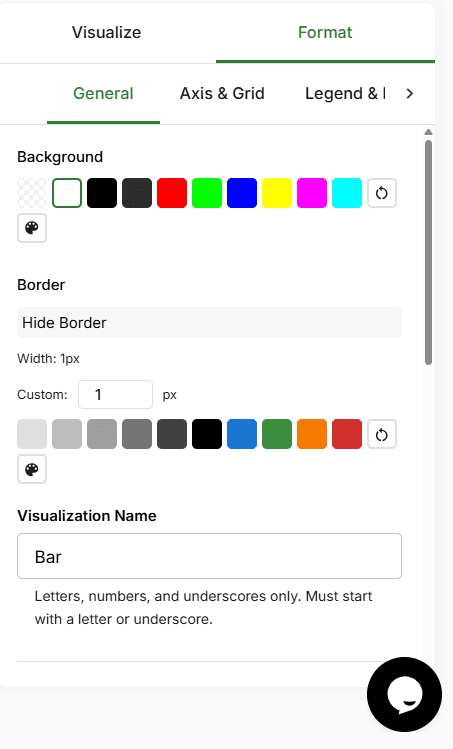
The General formatting panel — change chart type, title, background, and axis labels
Axes Configuration
Select an axis in the Axis and Grid subsection of the Format section to configure it.
Grid Lines
Toggle grid line visibility
Set grid line width, color, and opacity
Axis Labels & Ticks
Toggle label and tick visibility
Set label rotation from -90° to 90°
Configure font size and color
Value Formatting
Default: raw numbers
Symbol: currency prefixes such as $ or €
Compact: abbreviated notation like 1K or 1M
Percentage: displays values as percentages
Configure decimal precision for all formats
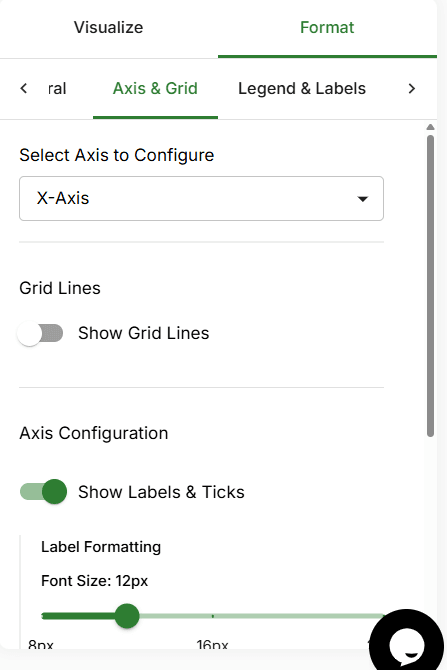
Configure grid lines, axis labels, tick visibility, rotation, and value formatting
Styling Options
All chart types support legends, data labels, and customizable color palettes. Chart-specific options are also available.
Legends
Enable the hue function on a column to create a legend. Configure legend position (top or bottom), text size, bold weight, and color.
Legend positioned at the top or bottom with customizable text styling
Data Labels
Toggle data labels on to show values directly on chart elements. Configure:
Format: default or string
Position: top, middle, or bottom
Rotation: -90° to 90°
Text styling: size, color, bold
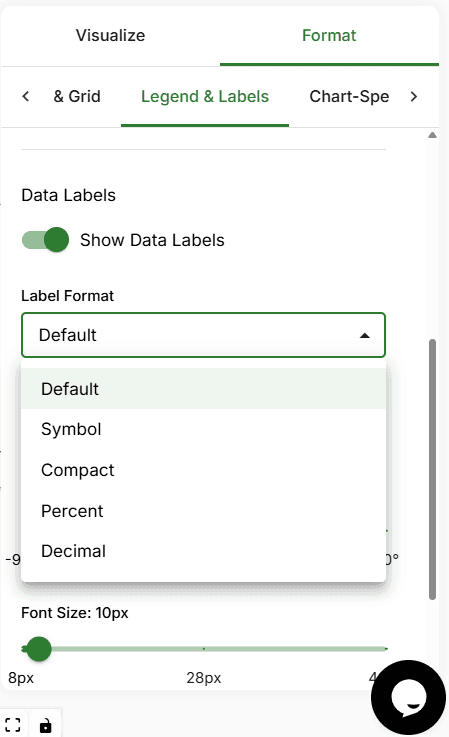
Data labels show exact values directly on chart elements
Color Palettes
Choose from built-in palettes or create your own:
Default
Pastel
Vibrant
Dark
Neon
Greyscale
Custom
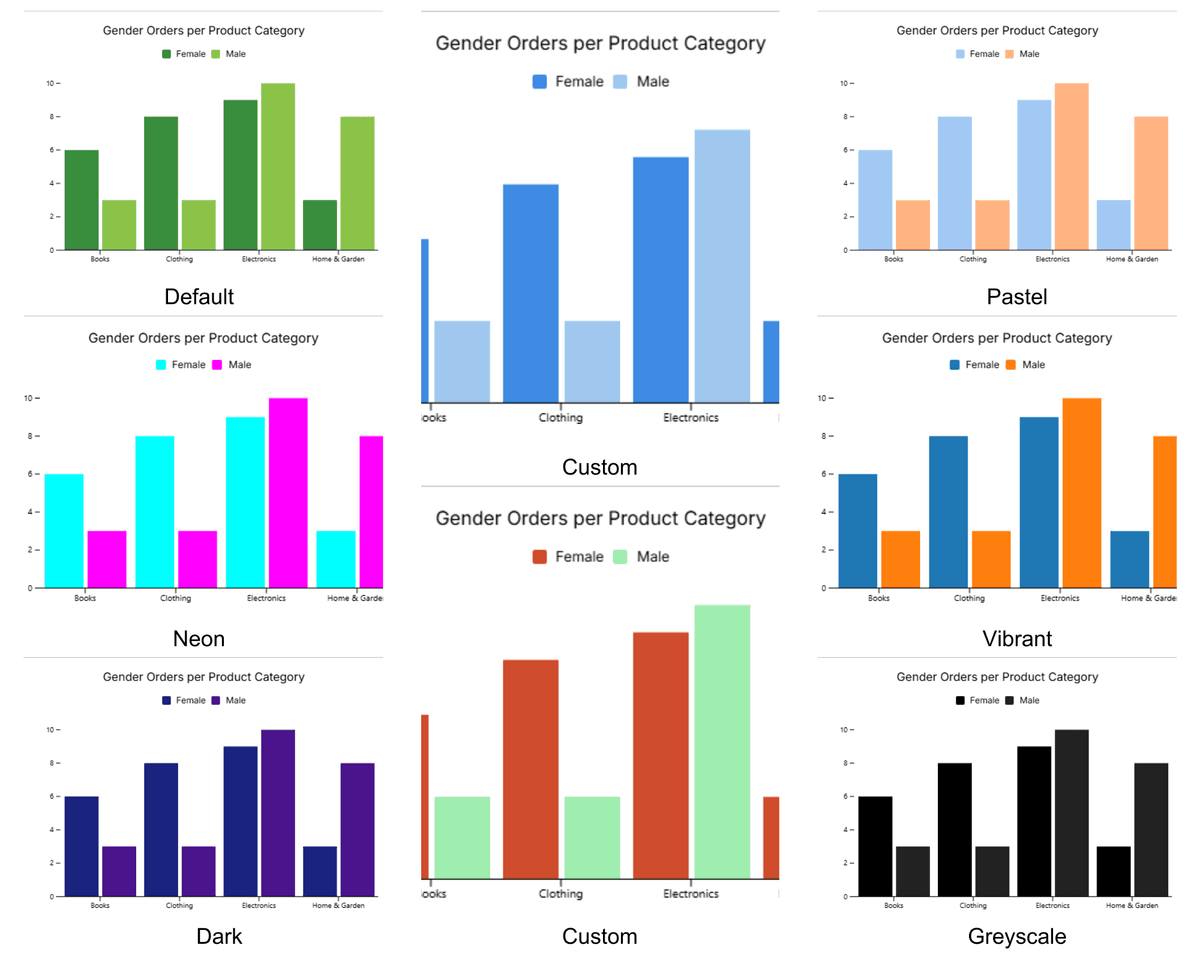
Built-in color palettes — choose from Default, Pastel, Vibrant, Dark, Neon, Greyscale, or Custom
Chart-Specific Options
| Chart Type | Specific Options |
|---|---|
| Line | Line width, style (solid/dashed/dotted), curve (linear/smooth/step), markers (size/shape) |
| Area | Same as line + line visibility toggle + area opacity (0.1–1) |
| Bar | Type (grouped/stacked), bar width, corner radius |
| Scatter | Point size, shape (circle/square/triangle/diamond), opacity |
| Card | Prefix/suffix text, subtitle with formatting |
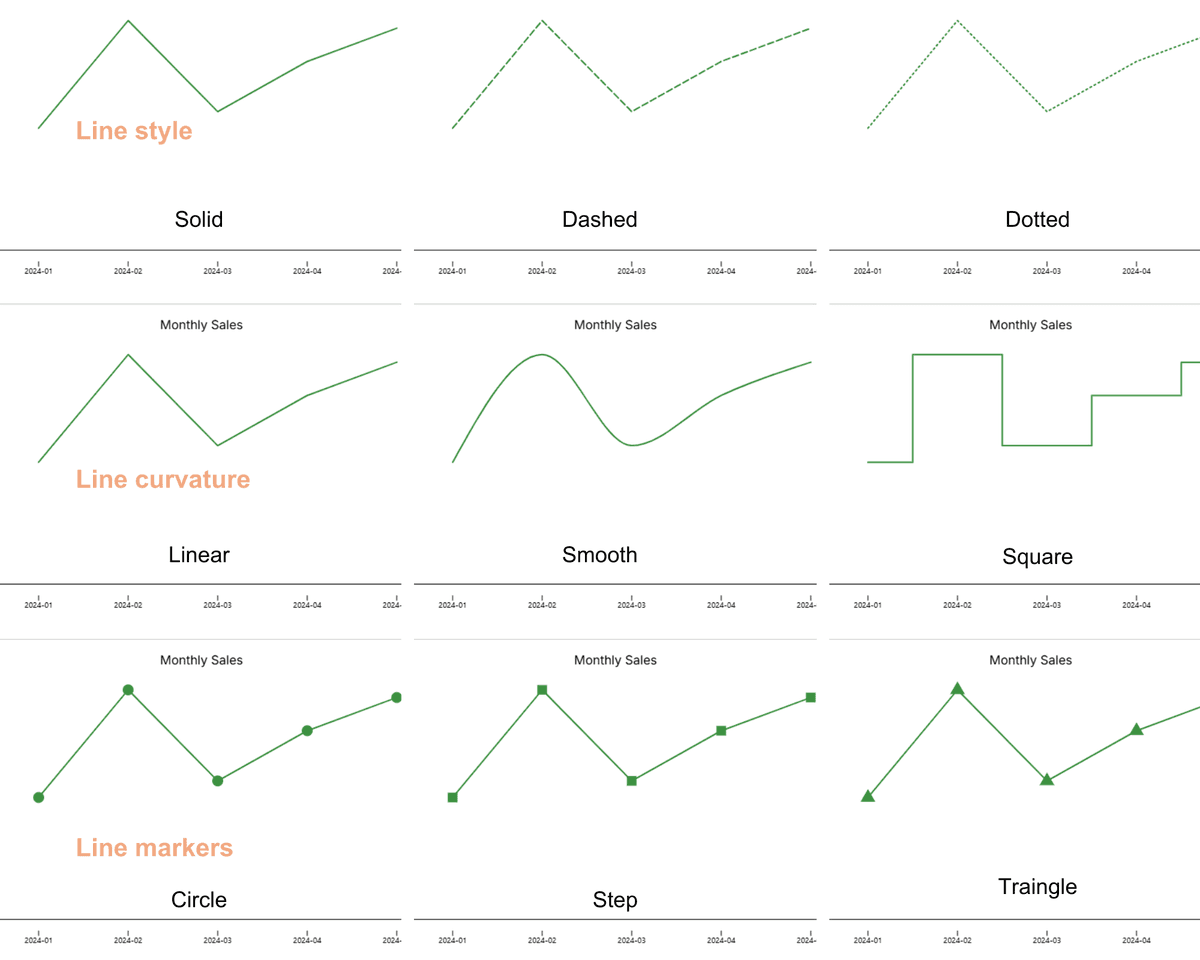
Chart-specific options like line style, bar width, point shape, and more
Data Transformations
Access data transformation options from the Data Transformation subsection in the frame settings panel.
Cumulative Totals: Toggle
"Show cumulative values"to display running totals across the x-axis.Percentage Display: Toggle
"Show as percentages"— especially useful for stacked bar charts.Data Label Formatting: Toggle
"Show data labels"in the Legend & Labels section and configure the label format.
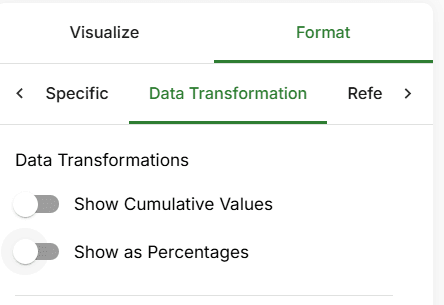
Toggle cumulative totals, percentage display, and data label formatting
Interactive Features
Tooltips
Hover over any data point to see exact values and category labels in a tooltip. Tooltips are enabled by default on all chart types.
Tooltips appear on hover and show exact values and category labels
Reference Lines
Reference lines allow you to add horizontal markers to highlight thresholds, targets, or benchmarks on your charts.
Go to the References subsection in the frame settings panel
Click "Add Reference Line"
Set the y-axis value, label text, color, and line style (solid, dashed, or dotted)
Add multiple reference lines as needed
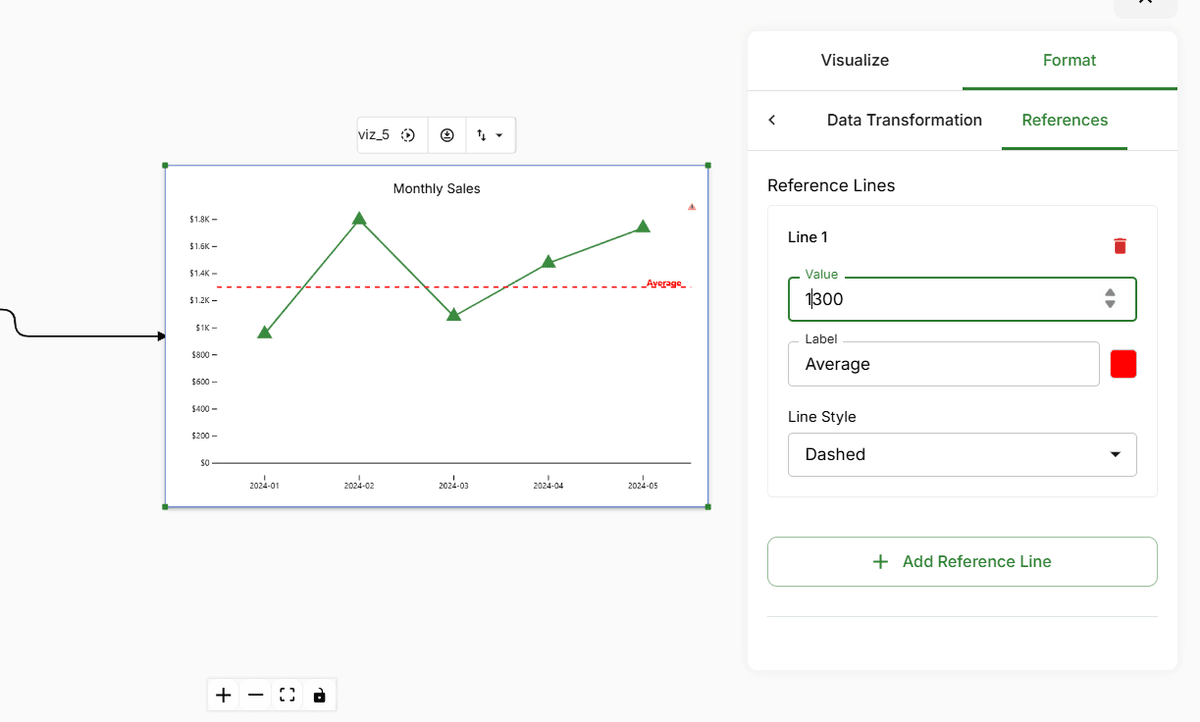
Reference lines highlight thresholds, targets, or benchmarks with configurable labels and styles