Node Types
FlowFrame uses a node-based system where different node types serve specific purposes. Understanding each node type helps you build powerful and maintainable data workflows on the canvas.
Query Nodes (Frames)
Frames are the core building blocks of FlowFrame. Each frame contains an SQL query and displays the resulting data table. Frames represent a single step in your data pipeline.
Creating a Frame
The easiest way to create a frame is to drag and drop a table name from the data source panel onto the canvas. The frame is auto-named a1 and populated with a default query:
SELECT * FROM table_nameEach frame has four main parts: the frame name, the data source indicator, the hovering panel (appears on hover with quick actions), and the query editor with output table below it.
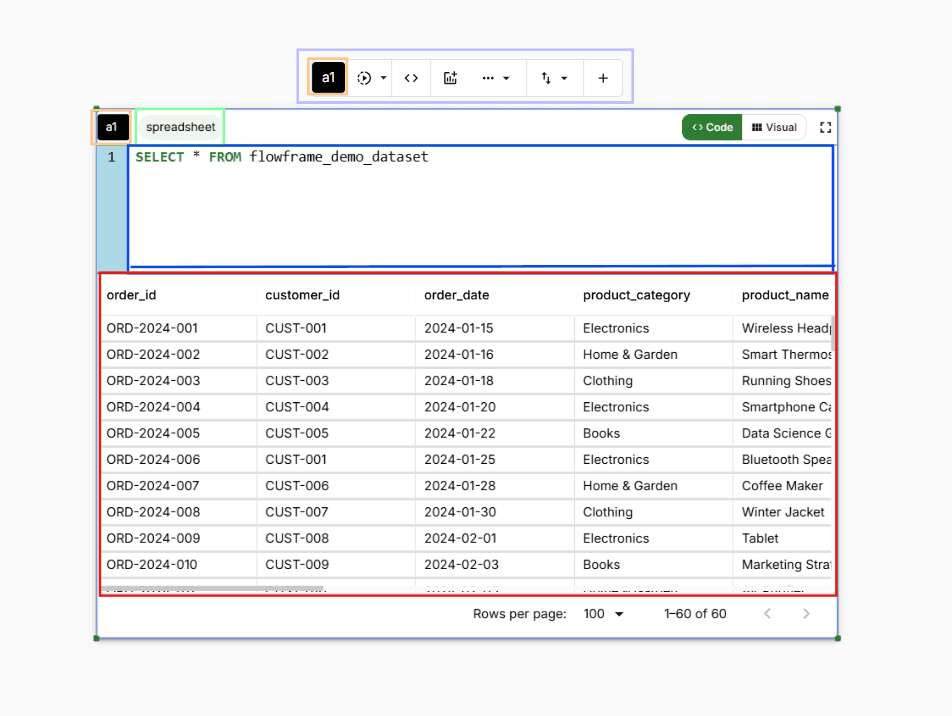
A query frame showing the frame name, data source indicator, query editor, and output table
Renaming a Frame
You can rename a frame in three ways:
Double-click the frame name directly on the canvas
Use the rename option in the hovering panel
Open the frame settings panel → Frame Name field
Customizing Frame Appearance
In the Format section of the frame settings panel, you can:
Hide the query editor (useful when using the frame output as a table view)
Change the frame background color
Change the frame text color
Show or hide the border, and configure its width and color
Linked Frames
Frames can be linked together to create data relationships — the output of one frame becomes the input of another. This is a core feature of FlowFrame's visual workflow and allows you to build multi-step data transformations.
Creating a Linked Frame
Click the + (plus) icon at the extreme right of the hovering panel on any frame. A new linked frame will be created with an arrow connecting it to the parent.
The initial SQL for a linked frame references the parent:
SELECT * FROM parent_frame_nameRun the linked frame to view its output based on the parent's results.
Dependency Rules
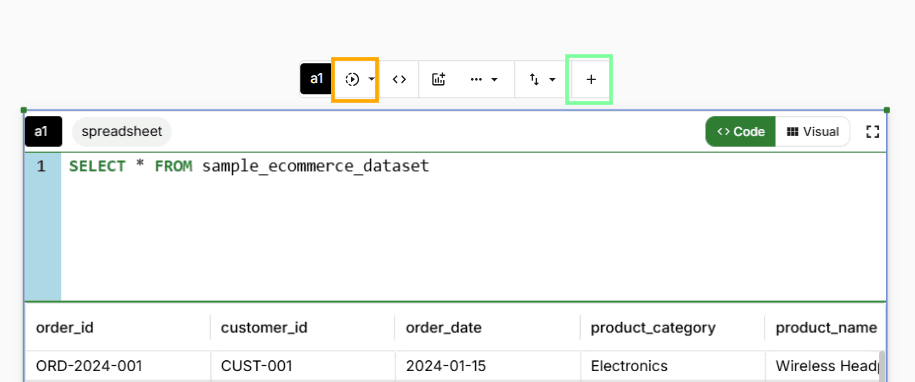
Linked frames are connected by arrows — the child's SQL references the parent frame by name
Changes to a child frame only affect that frame and its own dependents downstream.
Changes to a parent frame affect the parent itself and all frames that are linked to it.
Creating a linked frame from the hovering panel
Visualization Nodes
Visualization nodes transform query results into charts and graphs. They connect to a source frame via an arrow and automatically update whenever the source frame changes.
Method 1: From the Hovering Panel
Hover over a frame to reveal the hovering panel. Click the "Add Visualization" icon. Then, in the frame settings panel that opens, choose your X and Y axis columns.
Method 2: From Frame Settings
Double-click a frame to open the frame settings panel. Navigate to the Visualize section, select a data source, and choose your X and Y axis columns.
Available Chart Types
Line
Vertical Bar
Horizontal Bar
Scatter
Area
Card
Parameter Nodes
Parameter nodes are dynamic filters that control multiple frames and visualizations simultaneously. They are essential for building interactive dashboards where users can change values and see results update in real-time.
Create a Parameter Node
x icon).Configure the Parameter
Double-click the parameter name to rename it
Select a type: String, Number, Date, Boolean, or List (comma-separated values)
Enter the default value
Reference in SQL
{{Parameter_Node_Name}} syntax in your SQL query. For example:SELECT * FROM orders
WHERE Year = {{year}}Execute
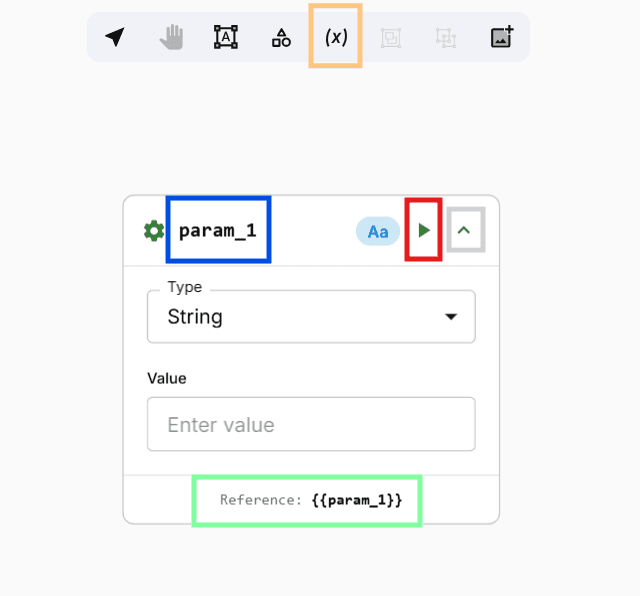
A parameter node configured with a name, type, and default value
Changing a parameter value updates all connected frames instantly
Text, Shape & Image Nodes
Text, shape, and image nodes let you annotate and document your canvas. All three icons are found in the top icon tray.

Text, shape, and image nodes let you annotate and document your canvas
Text Nodes
Click the text icon in the top icon tray, then click a location on the canvas. Double-click the center of the node to start typing. You can format text with styles, alignment, font size, color, background, and border settings.
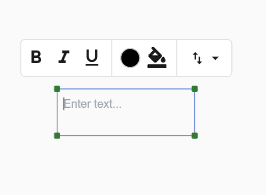
A text node with formatting options
Shape Nodes
Click the shape icon in the top icon tray and select a shape. Double-click the shape to open its settings. You can configure rotation (0°–360°), corner radius, border color and width, and fill color.
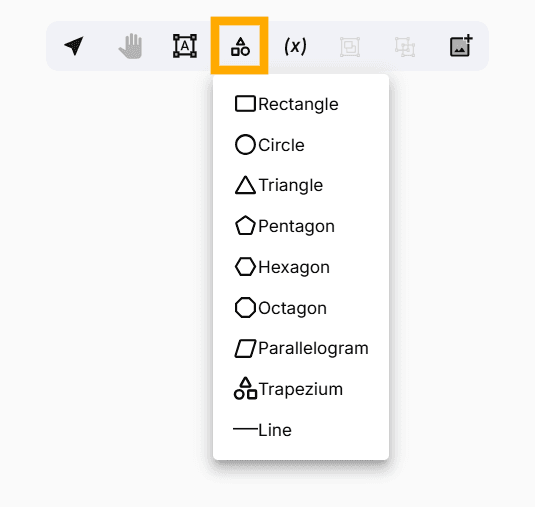
Shape nodes with configurable fill, border, and rotation
Image Nodes
Click the image icon in the top icon tray. You can paste an image URL or choose a file from your computer. Image nodes are resizable and repositionable on the canvas.
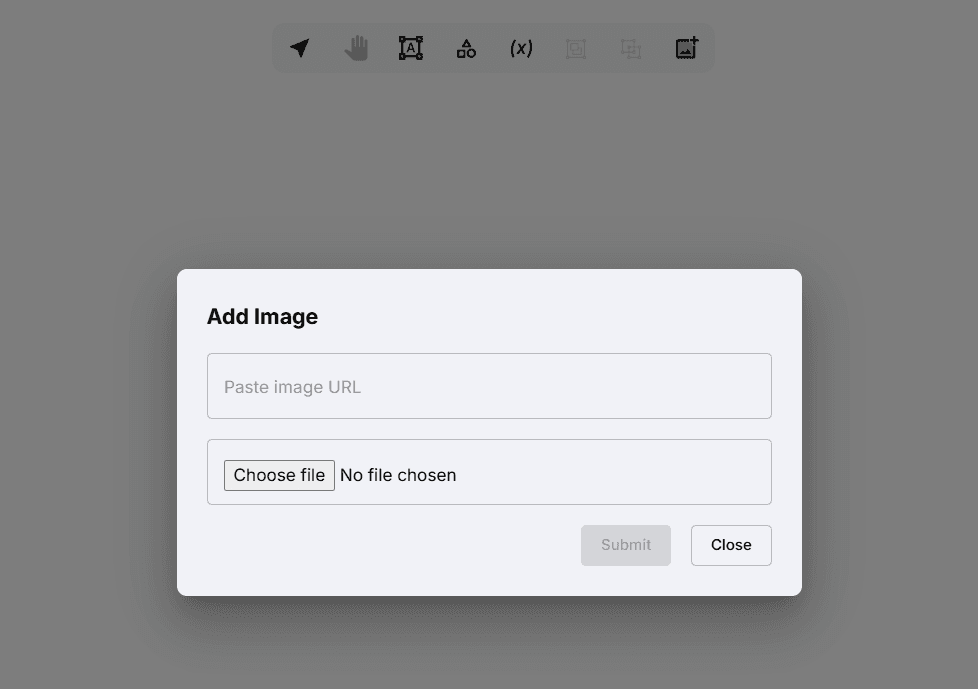
An image node added to the canvas from a URL or local file