Canvas Navigation & Formatting
The FlowFrame canvas is an infinite workspace. Understanding how to navigate and format it helps you stay organized as your projects grow in complexity.
Canvas Formatting
You can customize the canvas background color and pattern to match your workflow or branding preferences.
Click on an empty area of the canvas (not on any frame)
The right formatting panel will open automatically
Navigate to the Format section
Choose a background color and pattern
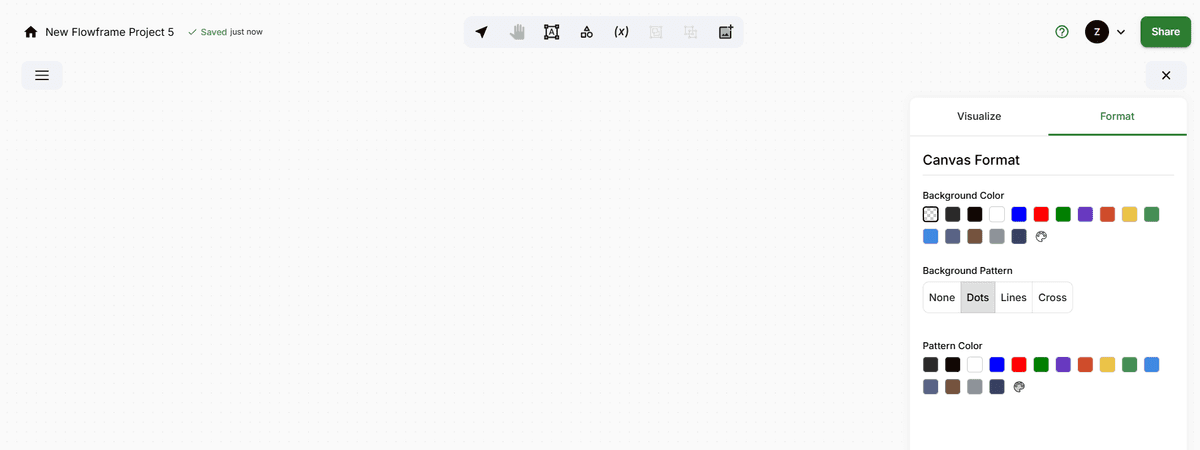
Customize the canvas background color and pattern from the Format panel
Navigation & Zooming
FlowFrame provides multiple ways to navigate around the canvas:
Scrolling & Panning
Scroll vertically: Use the mouse wheel to scroll up and down
Pan freely: Right-click and drag to move in any direction
Zooming
Zoom buttons: Use the + and - buttons at the bottom of the canvas
Quick zoom in: Double-click on an empty canvas area to zoom into that region
Use the zoom buttons or double-click on empty canvas to zoom in
Canvas Focusing
When your canvas has many frames, it can be difficult to locate specific ones. FlowFrame provides tools to quickly focus on what matters.
Fit View: Click the Fit View icon ([ ]) at the bottom of the canvas to zoom out and show all frames at once.
Focus on frame: Double-click a frame name in the data source panel (left sidebar) to zoom in and center the canvas on that specific frame.
Use Fit View to see all frames, or double-click a frame name in the sidebar to focus on it
Canvas Locking
Canvas locking prevents accidental edits to frames and queries. It is ideal for presentations, reviews, or sharing dashboards with stakeholders.
How to Lock
Click the Lock icon at the bottom of the canvas to toggle locking on or off. Click it again to unlock.
What Happens When Locked
Frames cannot be moved or repositioned
Query editors are disabled — no edits can be made
Parameter nodes still work and can be run
Visualizations remain interactive (hover, tooltips, etc.)
Frame outputs update automatically when parameter values change
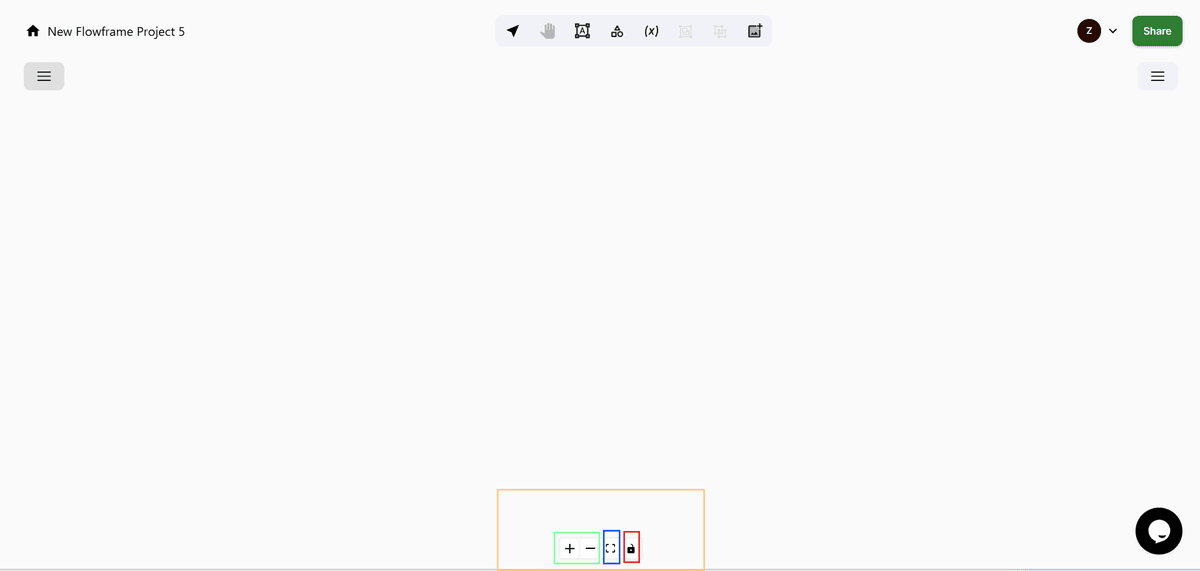
The lock icon at the bottom of the canvas — click to prevent accidental edits